Turn an inbound mailbox into tracked work
What you'll build
A shared inbox stops being a place where requests go to be forgotten: each new message opens a task with an owner and a due date, the sender gets an acknowledgement, and the same message can never open two tasks. Nobody has to remember to forward anything.
What you need
- An Email (IMAP) connection for the mailbox to read.
- An Email (sending) connection for the acknowledgement — Resend, SendGrid, Postmark or any SMTP server. Reading and sending are separate connections on purpose: plenty of teams read one mailbox and send from another address.
- A team to assign the work to.
The workflow, step by step
1. Add the trigger
In a new process, add an Email Received Trigger node and select the IMAP connection. It polls the mailbox and starts one run per new matching message.
- Folder —
INBOXunless the provider files mail elsewhere. - Poll interval — a number plus a unit (minutes, hours or days). Five minutes is a reasonable support-inbox cadence.
- Filters — from contains, subject contains, unread only, or switch the filter mode to JavaScript for a one-line predicate over the message.
The node's result is one email: uid, messageId, from (one address line),
to and cc (arrays), subject,
date, text, html, and attachments as metadata only — filename, content type and
size. The bytes are deliberately not fetched, so an attachment here cannot be handed to
a node that consumes files.
Optional keys are omitted rather than set to null when a message has none, so read
them defensively.
2. Normalize the message
Add a Run JavaScript node named Mail and connect the trigger to it. This is where
the defensive reading happens once, so no later node has to repeat it:
const m = Trigger.result
const body = (m.text || "").trim()
return {
  subject: m.subject || "(no subject)",
  from: m.from,
  summary: body.slice(0, 500),
  messageId: m.messageId,
}
3. Create the task
Add a Create Task node.
- Task name —
{{ Mail.result.subject }} - Description —
{{ Mail.result.summary }} - Assignee type: Team, with the assignment method Least work. Members who are unavailable or not accepting work for this process are skipped; if nobody is accepting, the task is still created and falls back to the whole team.
- Due date: relative — 1 day, with avoid weekends left on so a Friday evening
request is due Monday rather than Saturday. Set the node's timezone to the team's
zone, and optionally a working-day window (
09:00to18:00) so a late-evening message is due the next morning instead of at midnight. - Dedup id —
{{ Mail.result.messageId }}. A retried poll or a duplicate delivery then finds the existing task instead of opening a second one. - Notify assignee — on, so the person it landed on hears about it in the app.
4. Acknowledge the sender
Add a Send Email node against the sending connection.
- From — the address that connection is allowed to send as.
- To —
{{ Mail.result.from }} - Subject —
Re: {{ Mail.result.subject }} - Body — a short confirmation. Set the body format to Plain text or HTML to match what you wrote.
The node's result carries accepted, which is how you confirm a templated recipient
actually resolved to an address. Accepted by the provider is not the same as delivered —
nothing here reports a bounce.
5. Test and release
Paste a realistic message into the trigger's sample payload, then run the Send Email
node. Its dependencies run first, so this creates a real task and sends a real email —
point the sample's from at yourself the first time. Then save, release, and unpause
the process.
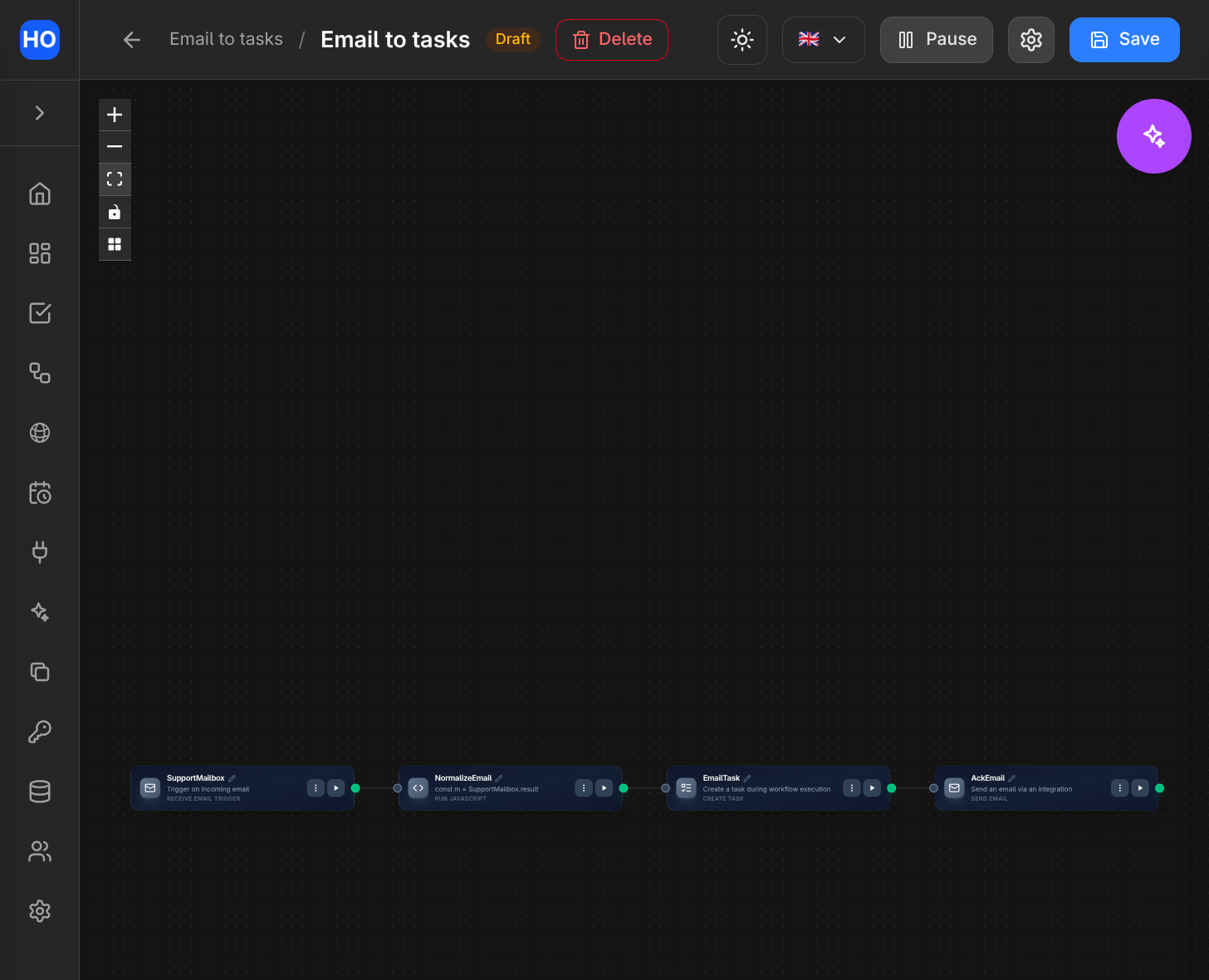
The finished workflow: incoming mail is normalized, deduplicated into a task, and acknowledged.
Variations
- Attach a form to the task. Give the Create Task node a form from your Forms
library, marked required, so the request cannot be closed until the handler has
recorded the outcome in a structured way. Their answers arrive back under the task's
form.data. - Work with the attachments. The trigger deliberately never downloads bytes. Add a Fetch Emails node with download attachments turned on to pull the same message again and store its attachments as workflow files — those can then be passed to an AI node, uploaded to Google Drive, or attached to an outgoing email.
- Classify before assigning. Insert an AI node between the normalizer and the task to sort messages by topic and urgency — see Triage incoming requests with AI.
- Escalate what goes stale. The tasks this creates have due dates, which is exactly what the overdue digest reads.
- Mark what you have handled. Turn on mark as read in a Fetch Emails node so processed mail does not keep matching an unread only filter.