Route WhatsApp messages to an available team member
What you'll build
Every message your WhatsApp Business number receives becomes a task in Honeybase, assigned to one member of a team — skipping anyone who is off shift or has stopped accepting work — and the customer gets an immediate acknowledgement. Two messages from the same person while a task is still open update that task instead of piling up new ones.
What you need
- A WhatsApp Business connection with receiving turned on. Sending only needs the access token; receiving also needs the app secret and verify token, and the webhook registered with Meta — the callback URL appears on the connection's settings page once it exists.
- A team with a few members in it. Team assignment is what makes availability matter; assigning straight to one person ignores it.
The workflow, step by step
1. Create the process
In Processes, create a new process — call it WhatsApp intake — and open its draft workflow. New processes start paused, which is what you want while you build.
2. Add the trigger
Add a WhatsApp Message Trigger node and select your WhatsApp connection. It fires once per inbound message on that number, for every message type.
Narrow it if the number is shared with other automations:
- Filter mode: Dropdowns gives you from contains (match part of a sender's phone number) and text contains (match a word in the body).
- Filter mode: JavaScript takes a one-line predicate over the message, bound as
msg— for examplemsg.type === "text".
The node's payload field holds a sample message. It is what test runs in the editor
see, so make it look like a real one: from, text.body, contact_name and
phone_number_id.
3. Create the task
Add a Create Task node and connect the trigger to it.
- Task name —
WhatsApp: {{ Trigger.result.contact_name }} - Description —
{{ Trigger.result.text.body }} - Assignee type: Team, pick your team, and set the assignment method to Least work. (Random and Uniform are the other two.)
- Priority — Medium, or High if this number is for urgent traffic.
- Due date: relative — 4 hours from now works as a first response target. Set the
node's timezone to the team's IANA zone (for example
America/Mexico_City) so that arithmetic happens in their day, not the server's. - Dedup id —
{{ Trigger.result.from }}. A second message from the same number finds the existing task instead of creating a second one; each field's dedup rule decides whether to leave it alone or overwrite it, and the default is to leave it.
How availability decides who gets it. When the node resolves a team to one person, members who are marked unavailable — or who have stopped accepting work for this process — are filtered out, and the assignment method picks from those who remain. If nobody on the team is accepting, the task is still created and falls back to the whole team: routing never blocks work from being recorded.
4. Acknowledge the customer
Add a WhatsApp node after the Create Task node.
- To —
{{ Trigger.result.from }} - Message type: Session, with text along the lines of
Thanks! We've logged your message and someone will reply shortly.
A session message is a plain text reply and is only deliverable inside the 24-hour window that opens when a contact messages you. Replying to an inbound message is always inside that window; reaching out first is not, and needs an approved Template instead.
5. Test it
Select the WhatsApp node and run it. Honeybase runs its dependencies first, so the trigger contributes its sample payload and the Create Task node creates a real task — node test runs are not simulations. Check the run result of each node, then delete the test task.
6. Release
Save, then release the workflow and unpause the process. Inbound messages now start runs, visible in the process's run history.
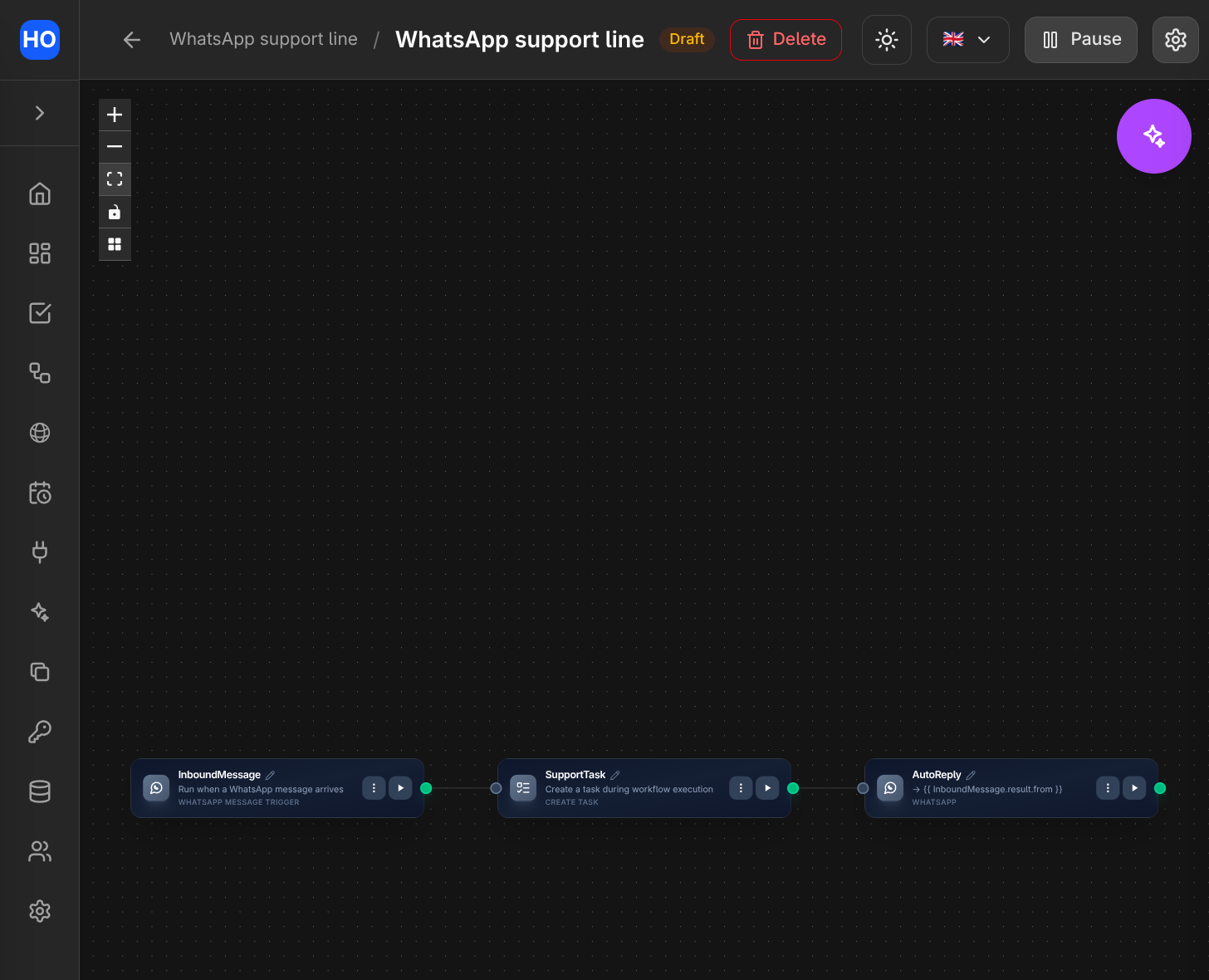
The finished workflow: an inbound WhatsApp message creates a task for the team, then sends the sender an acknowledgement.
Variations
- Split by topic. Put an If-Else node between the trigger and the task, with one
condition per team (
Trigger.result.text.body.toLowerCase().includes("invoice"), and an else branch). Each branch gets its own Create Task node pointing at a different team; the else branch catches everything unmatched. - Ask before routing. Send an Interactive buttons WhatsApp message first
("Billing / Support / Something else"), then start the routing workflow from a
WhatsApp Reply Trigger and branch on
{{ Trigger.result.interactive.button_reply.id }}. - Notice failed sends. A successful send means Meta accepted the message, not that
it arrived. A second workflow on a WhatsApp Status Trigger filtered to
failedcan escalate deliveries that never landed. - Close the loop from the task. Add a Task Update Trigger workflow that sends the customer a WhatsApp message when the task is completed.