Sync form submissions to a Google Sheet
What you'll build
Every submission of a form attached to your tasks lands as a row in a Google Sheet within seconds. Answering twice with the same email updates the original row instead of adding a duplicate.
What you need
- A Google Sheets connection. Three ways to authenticate; the choice decides who owns the access, so read the page's Before you start before picking.
- A form in your Forms library, and a spreadsheet whose first row is a header row — the column names in that header are what the mapping matches against.
The workflow, step by step
1. Prepare the sheet
Give the sheet one column per question you want to keep, plus anything you want to stamp
yourself: submitted_at, source, email. Header names are the contract between the
sheet and the workflow, so settle them before wiring anything.
If the connection uses a service account, share the spreadsheet with the service account's email address the way you would with a colleague. It only sees what has been shared with it.
2. Add the trigger
Form submissions reach workflows through the task that carries the form: submitting updates the task, and a Task Update Trigger node fires on that update.
-
Process —
This processwatches only tasks this process created (the usual choice when the same process both creates the form tasks and syncs the answers); pick a specific process or Any process to watch tasks created elsewhere. -
Filter mode: JavaScript, with a one-line predicate so only submissions fire — not every edit to the task:
task.form && task.form.submitted
Its result is the updated task, and the submission lives under result.form:
result.form.submittedAt, result.form.submittedBy, and the answers under
result.form.data.<question name> — every question key of the form's schema is
present, null for the ones left blank, so a path is stable even before the first
response exists.
3. Write the row
Add a Google Sheets node and connect the trigger to it.
-
Integration — your Google connection.
-
Operation: Append or update row. It writes a new row, unless a row already matches — which is what makes re-submissions overwrite rather than accumulate.
-
Spreadsheet — pick it from the list, or switch the selector to by id and paste either the bare spreadsheet id or the full URL.
-
Sheet — the tab to write to.
-
Match column —
email. That is the column the update operations key on. -
Mapping mode: Manual, then one row per column:
Column Value email{{ Trigger.result.form.data.email }}full_name{{ Trigger.result.form.data.full_name }}submitted_at{{ Trigger.result.form.submittedAt }}task{{ Trigger.result.name }}Mapping mode: Auto is the shortcut when the incoming field names already match the header names exactly — it maps the upstream node's fields by header and you write nothing.
4. Shape the awkward answers first (optional)
Checkbox and matrix questions answer with arrays and objects, which a spreadsheet cell cannot hold. Put a Run JavaScript node between the trigger and the sheet and return a flat object:
const d = Trigger.result.form.data
return {
  email: d.email,
  topics: (d.topics || []).join(", "),
  score: Number(d.score ?? 0),
}
Then map the sheet's columns to {{ Flatten.result.topics }} and friends, using
whatever you named the node.
5. Test and release
Run the Google Sheets node from the editor. It writes a real row using the trigger's sample payload — edit that sample so it looks like a genuine response first, then delete the test row. Save, release the workflow, and unpause the process.
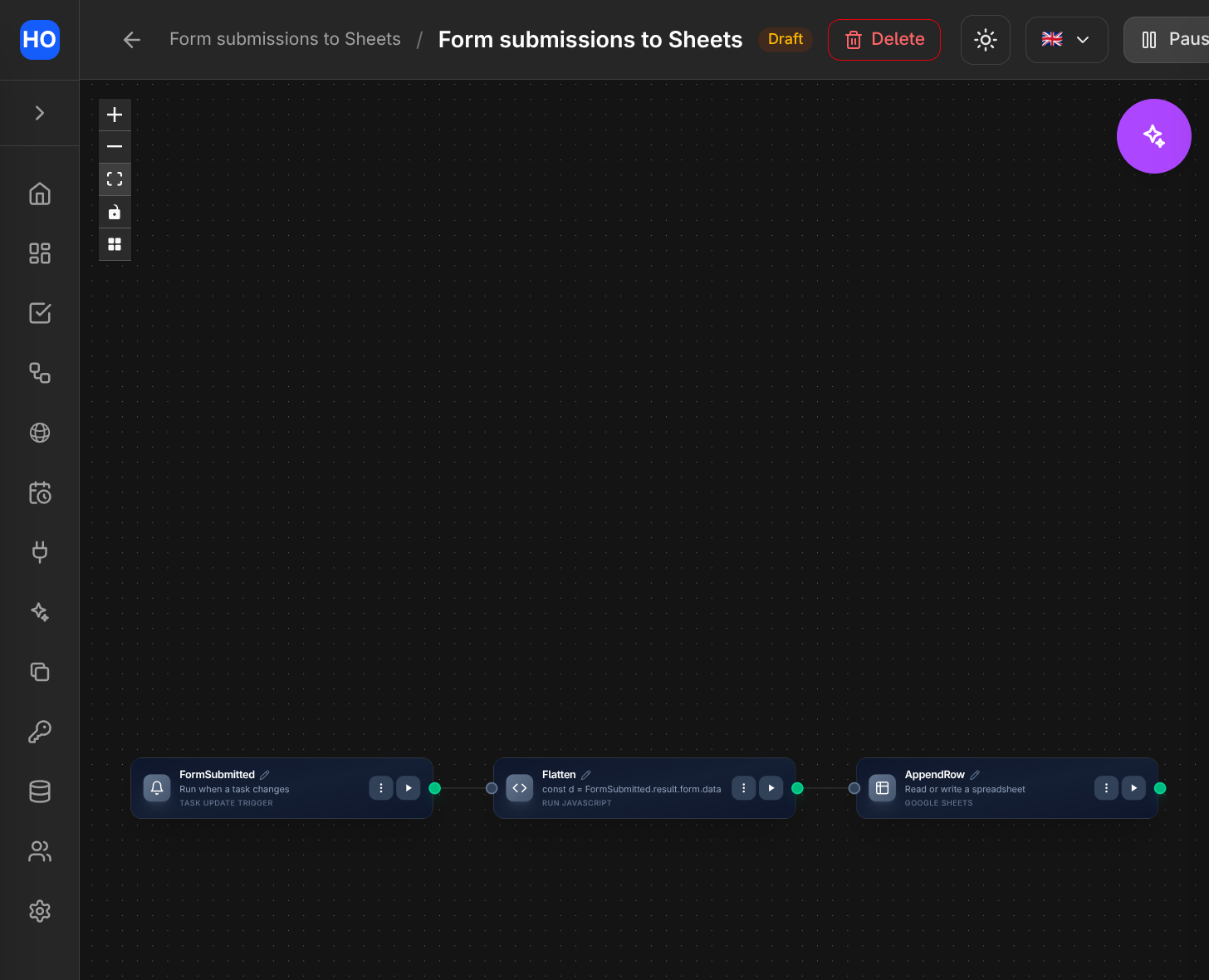
The finished workflow: a Task Update Trigger fires on form submission, a JavaScript node flattens the answers, and the row is appended to the sheet.
Variations
- Notify on submission. Add a Slack node after the sheet write, posting
New response from {{ Trigger.result.form.data.email }}into a channel. Requires a Slack connection. - Read the sheet back. A Get rows operation (optionally limited to an A1 range) returns the sheet's rows to the workflow, so an If-Else can branch on what is already recorded.
- Follow up with a task. Add a Create Task node so a human reviews responses that meet some condition, assigning it to a team rather than a person.
- Gate the task on the answer. Attach the form with required on, so the task cannot be completed until the member submits — the sheet then only ever records finished answers.