Schedules
A schedule is a recurring window on a person's calendar that writes their availability for them. Shifts, work hours, a Tuesday where you only handle escalations, two weeks of leave.
This page is about people's schedules. The Schedule Trigger node — the one that starts a workflow run on a cron expression — is a different thing entirely, and lives in Processes, workflows and runs.
What a schedule says
| When | A start date, an optional end date, whether it repeats, which weekdays, and every how many weeks. Windows are all-day, or a start and end time — and a window may wrap past midnight (18:00 to 08:00 is one window, not two). |
| Timezone | Explicit, per schedule. |
| Coverage | What the window means: off (not available), available for everything, or available for specific processes only. |
| Priority | A priority schedule suppresses overlapping non-priority ones for the duration of the overlap. |
| Reassign work | For a restrictive window (off, or specific processes), optionally move the team-assigned tasks you should no longer be doing to an available teammate when the window starts. Off by default — a short medical block often wants the work kept in place. |
| Apply mode | Whether the window writes your availability automatically, or only proposes the change. |
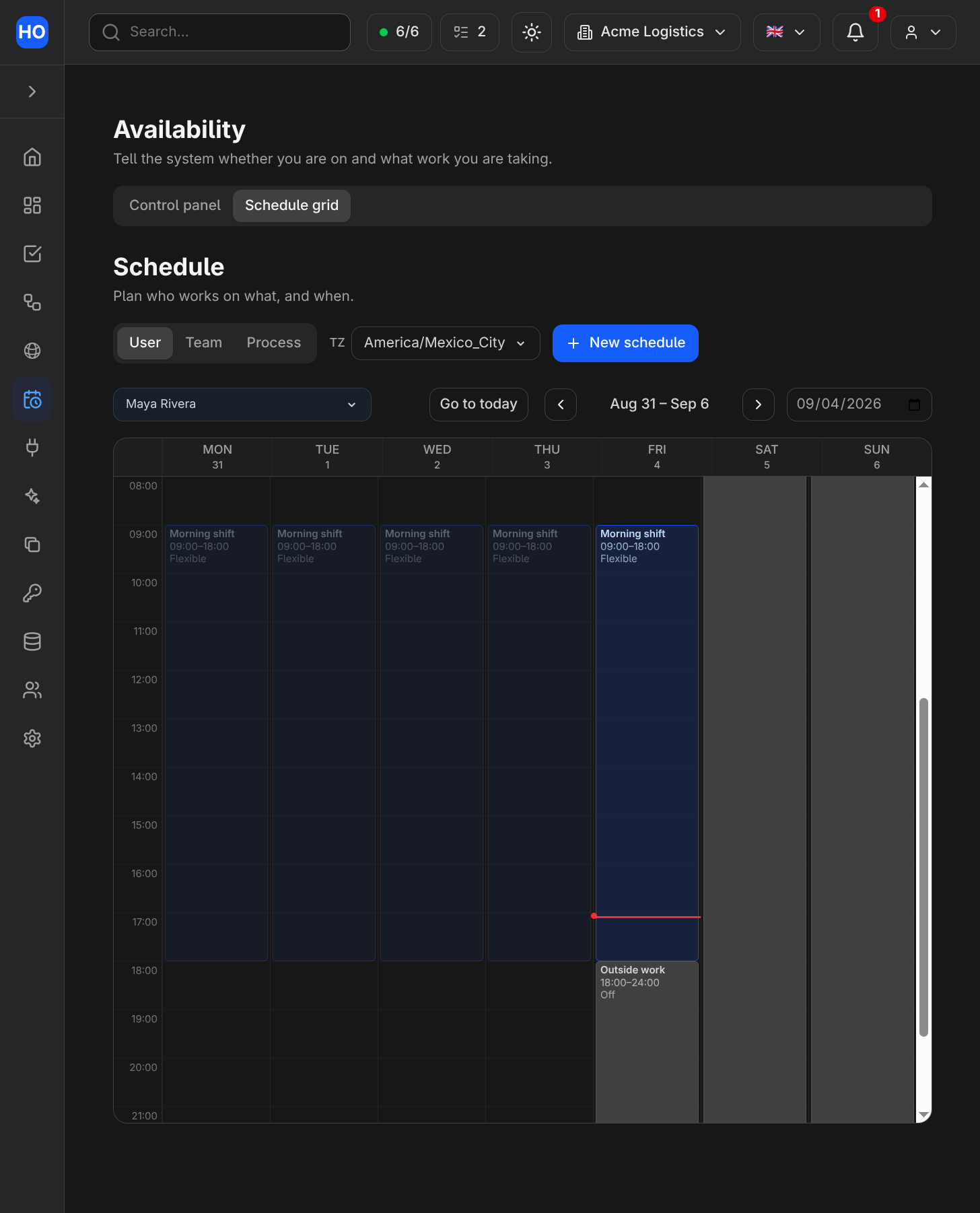
The schedule grid. A recurring 09:00–18:00 shift covers Monday to Friday; the seeded "Outside work" block turns availability off in the evening.
Window boundaries
Two moments matter: when a window starts and when it ends. At each one, Honeybase recomputes what your schedules say your availability should be at that instant, across all of them, and writes that.
Recomputing rather than applying one schedule's change is what makes the behaviour predictable in the cases that actually occur:
- Overlapping schedules resolve consistently. Among the schedules covering the moment (priority ones only, if any are priority), an off window wins; otherwise a specific-processes window narrows you to those processes; otherwise you are available.
- A late or duplicated boundary produces the same answer as an on-time one.
- An off-week of a fortnightly schedule does not accidentally apply.
At the end of a window, the settings the schedule wrote are restored to what they were before — but only those. Which brings us to the rule people most need to know.
A manual override survives the window end
Availability is last-writer-wins, and the writer is recorded. If you change something by hand in the middle of a window, the end of that window will not undo it: the schedule only restores what the schedule itself last wrote.
Nothing is locked, in either direction. An administrator or a schedule can write your state, and you can always change it back. The schedule will simply write again at its next boundary — which is the honest description of what a recurring rule does.
Automatic and Notify
Each schedule chooses how its boundaries apply.
Automatic (the default) writes the change silently. This is right for the windows you configured yourself on a cadence you already know — a shift starting is not news, and a notification for every boundary of every schedule is a notification nobody reads. Your current state and what set it are always visible on the availability control panel, and the full history is on the grid.
Notify writes nothing. It sends you a proposal instead: here is what this schedule would change, accept or decline. Accepting applies it as if you had made the change yourself. Declining leaves everything alone — and because nothing changed, the window's end has nothing to propose either. A proposal you never answer expires when its window ends, rather than applying late.
Creating, editing and deleting
Schedules reconcile immediately, not at the next boundary:
- creating a schedule whose window covers right now applies it;
- editing one restores what the old shape wrote, then applies the new shape;
- deleting one restores what it wrote. A deleted schedule's effect never sticks around.
New accounts start with default outside-work schedules — weeknights and weekends — so a new member is not routed work at 3 a.m. before they have configured anything. They are ordinary schedules: edit or delete them like any other.
Reading and writing schedules elsewhere
Schedules are in the GraphQL API alongside availability, under
schedules. Managing someone else's schedules needs the same permission grant as changing
their availability directly, because a schedule is a way of changing it.
The AI copilot can read your schedules and availability — "why did this task go to Ana?", "when am I off?" are exactly the questions it is good at. It cannot write a schedule, and the one availability change it can make (turning a member's acceptance of a single process on or off) always asks first. See Agents and Barry.