Teams and availability
A task has exactly one assignee. Everything on this page is about how that person gets chosen, and what happens when the choice stops being a good one.
Teams
A team is a named group of members, with a colour so it is recognisable in a list, and optionally a Slack channel it maps to. Teams exist so that a workflow author does not have to name individuals: "the intake team" survives someone joining, leaving or going on holiday, and a person's name in a released workflow does not.
A Create Task node assigns work in one of two ways:
- Directly to a member. Explicit and unconditional — availability is not consulted. The recipient must have an enabled membership in this organization.
- Through a team. Honeybase resolves the team to one member at the moment the task is created, using one of three methods: random, uniform (spread evenly across the team), or least work (whoever currently has the least open work).
Team-assigned tasks remember their team. That is what makes reassignment possible later — a task assigned directly was a deliberate choice, and nothing moves it automatically.
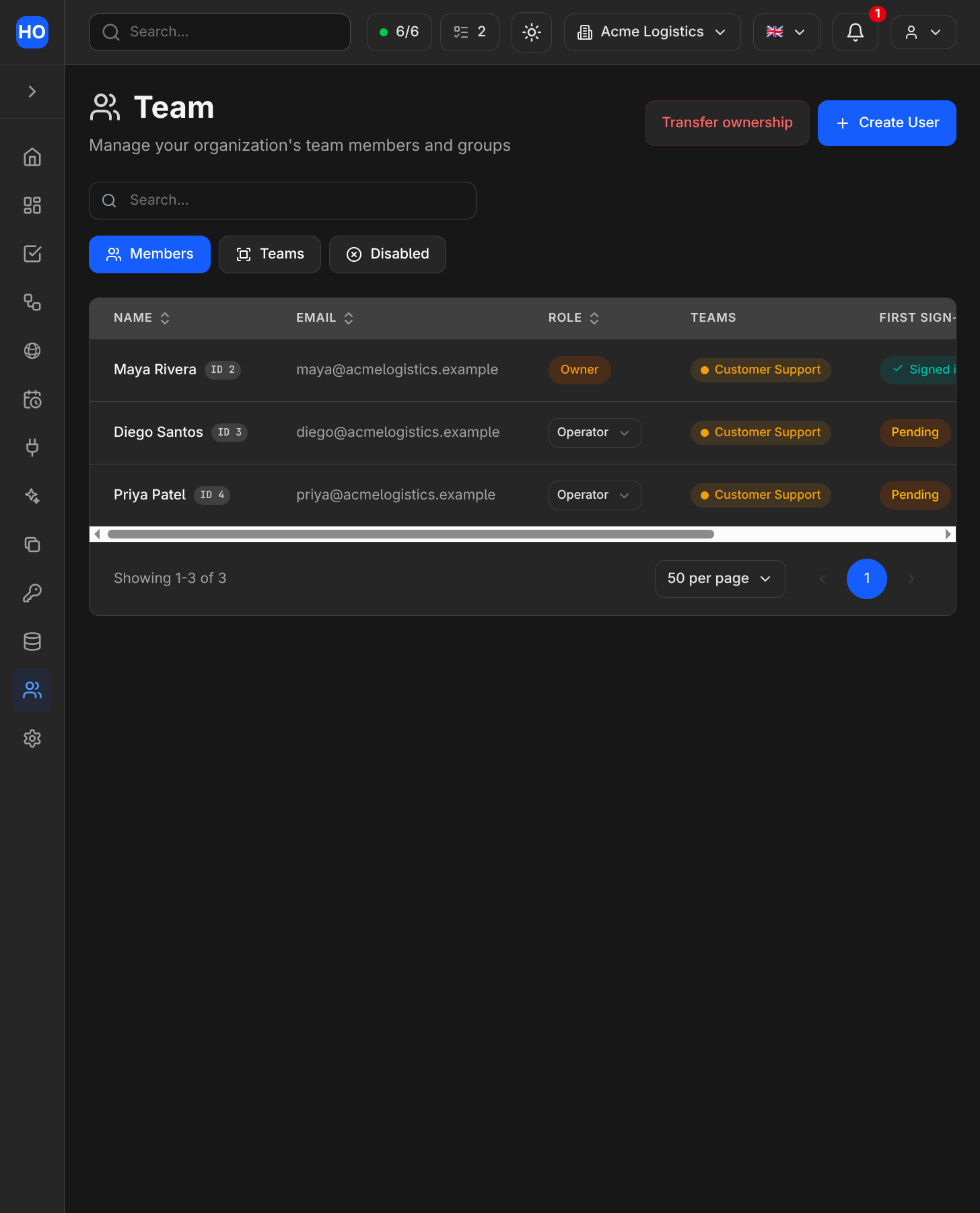
The organization's members, their roles, and the teams they belong to.
When creating a user, people with team-management permission can select teams alongside the user's role. A new account joins those teams when it is created. If the email belongs to an existing account, the selection travels with the invitation and applies only when that person accepts. Teams deleted before acceptance are skipped; the remaining selected teams still apply.
Deactivating a member
Deactivation affects only the selected organization. Administrators can deactivate home and external members. The confirmation dialog shows unfinished tasks and affected teams. When unfinished tasks exist, choose an enabled individual or a team with an assignment method. Honeybase moves the tasks, removes local team memberships, and disables access in one transaction. Completed tasks retain their historical assignee. An Owner must transfer ownership before deactivation.
Re-enabling restores access without restoring teams or reclaiming tasks. For a member disabled before this flow was introduced, use Reassign unfinished tasks on their row to move remaining work. Remove access remains a separate action for external members.
Disabled members cannot receive direct assignments or be added to teams. Team routing always excludes them, including when no team member is accepting work. Other organization memberships and their tasks remain usable.
Availability
Availability answers one question: should this person be routed new work right now?
It has two levels:
- a global switch — available to work, or not;
- per-process acceptance — for each process in the organization, whether you are accepting its work.
Effective acceptance for a process is available AND accepting that process. The global
switch masks the per-process toggles rather than erasing them: turn yourself unavailable
and back on, and your per-process choices are where you left them.
Both default to on. New members are available and accepting everything until they or a schedule says otherwise — only deviations are recorded, so a person who never touches the control panel behaves exactly as if the feature did not exist.
State is per organization. If you belong to more than one, turning yourself off in one does not affect the other.
The availability control panel. This member is accepting work on four of six processes; each row shows who set the current state.
How routing actually uses it
Three rules, and the third is the one that matters most in practice.
- Availability is consulted only when resolving a team to a member. It is an input to that choice, nothing else.
- Direct assignment ignores it entirely. Naming a person means naming that person.
- If nobody on the team is accepting, the task is still created. Honeybase falls back to the enabled team members. A team with no enabled members cannot receive tasks. Work arriving somewhere imperfect is a problem you can see and fix; work silently not existing is not.
Availability is a routing preference, in other words — not a lock, not a queue, and not a guarantee that nothing will land on you.
Reassignment
When someone goes off shift, the work already assigned to them does not move by itself. Moving it is reassignment, and it is deliberately a two-step action:
- Plan. You get a preview: which tasks would move, and to whom, using the same three methods available for team assignment.
- Apply. The plan is recomputed at the moment you apply it, because a preview a few minutes old may already be wrong.
Only team-assigned tasks are eligible. A task someone assigned to a specific person by hand stays put — reassigning it would be second-guessing an explicit decision.
Recipients are notified once per batch, not once per task. The person going off shift is not notified: they arranged to leave, and telling them about work they no longer have is noise.
Reassignment can also run automatically at the start of a schedule window — see Schedules.
Who can change what
Anyone in the organization can see anyone's availability. That is deliberate: "why did this go to Ana?" and "who is on right now?" are ordinary questions, and a system that hides the answer just moves them into chat.
Changing someone else's availability requires an explicit permission grant. Changing your own never does. Because schedules write availability, managing someone else's schedules requires the same grant.
Nothing is locked. An administrator or a schedule can write your state, and you can always override it. If a schedule disagrees, it will simply write again at its next window boundary — see Schedules.
History
Every availability change is recorded: what changed, when, and what caused it — you, an administrator, or a named schedule. The schedule grid uses this to paint the past as it actually happened, while future days are painted from your schedule rules. The two are different things and the grid does not pretend otherwise: a day you overrode by hand shows your override, not the plan it deviated from.
This history is available through the API as well (availabilityIntervals), bounded per
request. See the GraphQL API.
Round-robin routing
Team Round Robin uses one rotation for an organization and team, across processes. Process Round Robin uses a separate rotation for each process; tasks without a process have their own rotation. Both choose enabled, eligible members in user-ID order and wrap around after the last member. The cursor is saved with the task assignment: previews, rolled-back writes, and unchanged workflow dedup updates do not consume a turn.
Bulk task editing separates the task's team label from assignment. Choose an individual or a team and routing method to change the recipient. Changing the label alone does not reassign the task. A batch containing several processes uses each task's own process for availability and process rotation.